
via http://gridness.net/current/intelligence-in-lifestyle-magazine/
 "The first serious infowar is now engaged," EFF co-founder John Perry Barlow tweeted on Friday. "The field of battle is WikiLeaks. You are the troops."
And here we are.
In the week since the whistleblower site released its latest round of documents to major global newspapers, the site has been besieged by DDOS attacks (upwards of 10 Gbps at one point), forcing the site offline and hampering its ability to deliver data.
Sponsor
After moving to Amazon Web Services at one point, presumably to better handle the traffic, the site was summarily booted on Wednesday, shortly after Senator Joe Lieberman condemned Amazon with a "providing comfort to the enemy" sort of rationale. In justifying its actions, Amazon pointed to its Terms of Service, and challenged Wikileaks' rights to and ownership of the documents, as well as its ability to promise no injury will occur based on the content.
A similar argument was made by the visualization company Tableau Software on Thursday when it also expunged all Wikileaks data from its site.
On Thursday, Wikileaks also lost its nameserve provider when EveryDNS cut service. EveryDNS made a different argument than Amazon or Tableau, arguing that while it supported Wikileaks, it could not continue to provide services to its 500,000 other customers while under the barrage of heavy DDoS attacks.
Late Friday night, PayPal updated its blog, indicating that it was freezing Wikileaks' account. The organization could no longer receive donations via PayPal. PayPal justified its actions by pointing to its Terms of Service, which dictate "our payment service cannot be used for any activities that encourage, promote, facilitate or instruct others to engage in illegal activity."
 Despite the arguments that Amazon, PayPal, and others make about the illegality of the leaked documents, it's not clear that Wikileaks has broken any law. It is clear that some politicians and pundits wish it to be so, most often invoking the Espionage Act as justification.
The Espionage Act makes it a crime to interfere with military recruitment or to convey information dealing with national defense. Since its passage in 1917 (Red Scare, anyone?), the law has been challenged a number of times in the courts, most notably with regards to the Pentagon Papers when the Supreme Court ruled that The New York Times was within its rights to publish the leaked information. "Conveying" government secrets is a crime; "publishing" them is not. It is protected by the First Amendment, and for the government to intervene to prevent that from happening is unconstitutional.
Of course, Amazon and the other companies aren't the government, and as such can intervene - determining whether or not to have Wikileaks as a customer. The legality of publishing documents is irrelevant. These companies can shrug and say it's "against the Terms of Service" and that's it. Wikileaks, take your business elsewhere.
 The ability for Internet companies and Internet users to be able to create and share without government intervention is not just a mark of free society. The tech industry pays a lot of lip service to the "open Internet," arguing that it is the very thing that has fostered innovation in and growth of the industry. The filters, monitors, blocks, and blacklists associated with repressive governments, so the argument goes, serve not just to prevent access to information but to stifle creativity and entrepreneurship.
No matter how one justifies the actions of Amazon and the like - Terms of Service or otherwise - the events this past week have not simply demonstrated the spinelessness of certain companies to stand up to government and public pressure; they have pointed to some of the weak links in the "open Internet," those points of control that are particularly important (and seemingly particularly vulnerable).
1. Cloud Storage:
Amazon Web Services is the leader in cloud computing, that is, virtualized servers that offer a far cheaper and more flexible way to store data and host websites. Cloud computing is, in the words of Newsweek's Joseph Galarneau, the "21st century equivalent of the printing press." Arguably cloud computing has helped facilitate the explosion of new media and new companies.
However, that the modern-day printing press - the way in which companies increasingly host and distribute their content - is so quick to shut its doors is deeply troubling. It raises a number of questions about the future of free expression as well as about the reliability of the cloud as a tool for such. It also highlights the importance of data portability. If cloud providers can so easily oust controversial customers, the cloud may be a less appealing route for publishers. But once "in the cloud," we do need interoperability - the ability to easily move storage from one cloud provider to another. We shouldn't be locked in to one provider who can then completely govern whether or not we can have access to its "printing press."
2. DNS:
It's important to point out that unlike Amazon, Paypal, and Tableau, EveryDNS did not boot Wikileaks due to political pressure. The service provider said it needed to sever the contract in order to maintain services to its other customers. Nonetheless, problems with Wikileaks' DNS -- as well as recent domain seizures by Homeland Security - point to the second major weak link in the open Internet: the domain name system. The DNS, or Domain Name System, is one of the foundational elements of the Internet, responsible for translating the numbers in IP addresses to the more human-friendly names. And Wikileaks has struggled to keep its site up, having to move from Wikleaks.org to Wikileaks.ch to Wikileaks.nl as various countries have put pressure on both local DNS providers as well as on ICANN the international body that manages the registration of top level domains.
There have a number of suggestions recently to address this centralized control, most notably a proposal by Pirate Bay co-founder Peter Sunde to work towards the development of an alternative P2P DNS, one that would be decentralized and distributed. In the meantime, hundreds of people are setting up mirror sites for Wikileaks.
 We often talk about the Internet as being the new "public square," the place where we communicate, participate, argue, share, debate, learn, listen. But many of the key pieces of Internet infrastructure are privately owned. And these companies have no obligation - and sometimes clearly, little willingness - to protect our First Amendment rights.
As the EFF recently noted, "Online speech is only as strong as the weakest intermediary." And while the U.S. likes to describe itself as the bulwark for free speech, neither the government nor corporations have proven to be defenders of such.
The actions taken against Wikileaks should be a wake-up call to those of us who do value free expression. We need to support organizations, projects, and technologies that will make sure that the Internet remains open, and that information and knowledge are free. We need to recognize the "weak links" and move to strengthen the alternatives.
This op-ed first appeared on my personal blog
Discuss
So the Galaxy Tab and a few other devices are just small enough to fit into a back pocket (some back pockets, anyway) but what about an iPad or similar device? Where are you supposed to put that, if you’re just going out to the store and don’t want to carry a bag, yet somehow still want to have your iPad with you?
My friend, allow me to introduce the Large Pocket Shirt.
It’s a white shirt with one big-ass pocket on it. What can you put in the pocket? Many things. iPads, notepads, bag lunches, baby kangaroos — the possibilities are so much greater than regular-size pockets. You could even put a spare Large Pocket Shirt in the pocket. That would blow some minds.
They cost $30 each — shipping is free and they’ll be available on the 10th.
[via The Awesomer]
-
-

-
-
-
-

-
-

-
-

-
-
 all drawings © NICHOLAS DI GENOVA
-
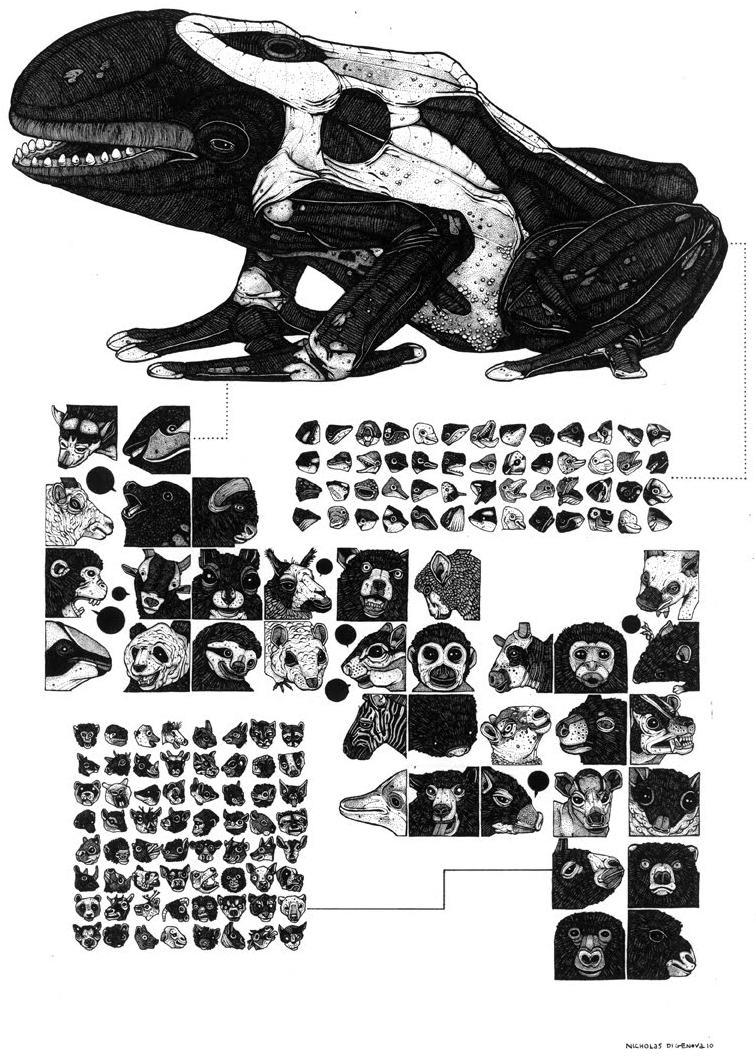
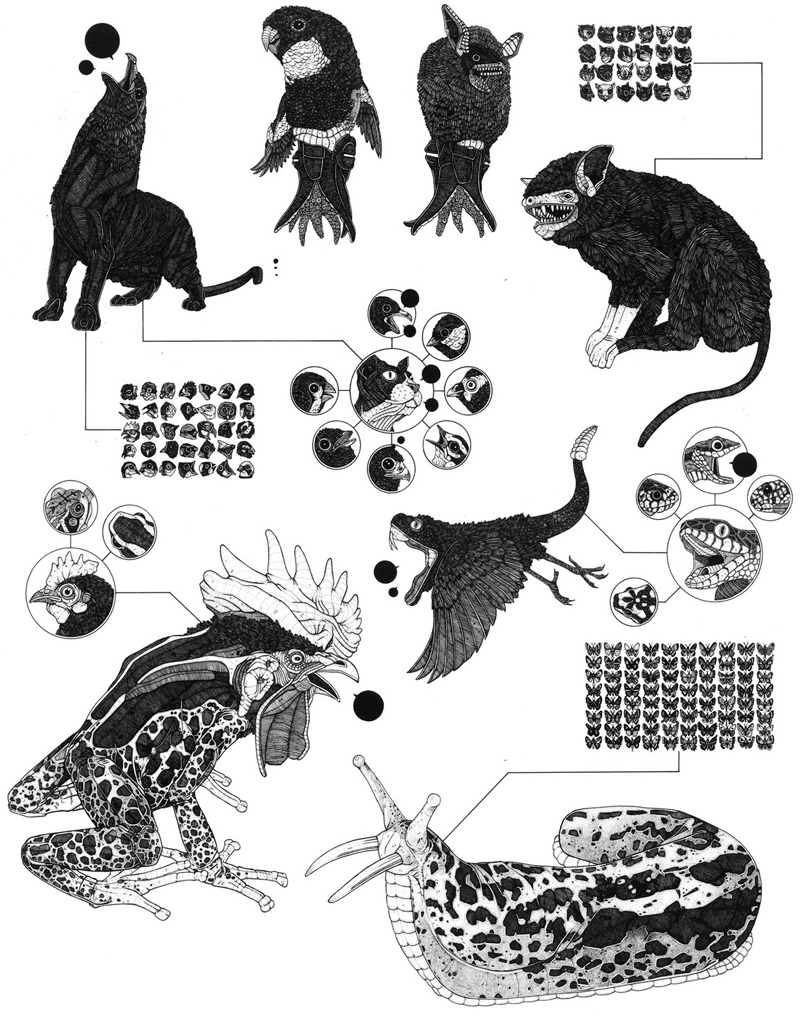
NICHOLAS DI GENOVA is an artist that I spotted in June during Scope Basel. Few months later, it’s definitively time to feature his incredible drawings on WFW.
NICHOLAS DI GENOVA is a Canadian artist who works mainly with ink and animation paints to create a vast and intense encyclopedic range of constructed interconnected species, families and rival clans that find themselves projecting their habits, relations and environments to their viewers.
“When I was a kid growing up I was obsessed with animals and monsters… I’d draw them everyday, and when I grew up I either wanted to be a zoologist or a monster hunter… When I got a bit older I realized that being a zoologist was less exciting than I had imagined, and that ‘monster hunter’ isn’t even a real job, so I just kept drawing. I pretty much do the exact same thing at 29 years old that I did when I was 9 years old.â€
This is Art, with a capital “Aâ€: very good, important and innovative!
Stephen Culp has another striking chart today:

This chart should be ingrained in the mind of anybody who cares about fiscal policy. The main things to note:
If you were structuring a tax code from scratch, it would look nothing like this. But the problem is that tax hikes seem to be politically impossible no matter which party is in power. And since any revamp of the tax code would involve tax hikes somewhere, I fear we’re fiscally doomed.


Back when I used to spend time in the darkroom, somebody once asked me if they could cancel out their mis-focussed photos by just dialing the enlarger’s lens in the opposite direction. I laughed, but I couldn’t help wishing it was true.
25 years later, it can be done, not in wet darkroom but with your computer. A new Photoshop plugin from Topaz Labs corrects focus-blur, as well as motion-blur caused by camera-shake.
It does this by reverse-engineering the blur, using something called “image deconvolution technologyâ€. This actually correct the blur instead of just increasing edge-sharpness, another technique which makes photos appear sharper, but does nothing to fix them.
There’s a 30-day free trial for the InFocus plugin (the software costs $70 otherwise), so I gave it a quick test drive, with pretty bad results. It seems that every image I tried it with ended up with speckly artifacts all over it. Images with more detail fair better: an out-of-focus portrait doesn’t fare as well as a detailed architectural shot, for instance.
It’s worth a try, and the sample images on the site show that, in practiced hands, it works well. But more important is what it means for digital photography. With imaging tech always improving, otherwise hopeless photos could be saved in the future. You’d better go out and buy another hard-drive to store all the photos you’d otherwise toss out: if you wait long enough, some piece of software will come along and turn it into a masterpiece.
Topaz InFocus product page [Topaz Labs]
See Also:
 |
As a Web designer you’re undoubtedly familiar with CSS, the style sheet language used to format markup on Web pages. CSS itself is extremely simple, consisting of rule sets and declaration blocks—what to style, how to style it—and it does pretty much everything you want, right? Well, not quite.
You see, while the simple design of CSS makes it very accessible to beginners, it also poses limitations on what you can do with it. These limitations, like the inability to set variables or to perform operations, mean that we inevitably end up repeating the same pieces of styling in different places. Not good for following best practices—in this case, sticking to DRY (don’t repeat yourself) for less code and easier maintenance.
Enter the CSS preprocessor. In simple terms, CSS preprocessing is a method of extending the feature set of CSS by first writing the style sheets in a new extended language, then compiling the code to vanilla CSS so that it can be read by Web browsers. Several CSS preprocessors are available today, most notably Sass and LESS.

What’s the difference? Sass was designed to both simplify and extend CSS, so things like curly braces were removed from the syntax. LESS was designed to be as close to CSS as possible, so the syntax is identical to your current CSS code. This means you can use it right away with your existing code. Recently, Sass also introduced a CSS-like syntax called SCSS (Sassy CSS) to make migrating easier.
By now you might be thinking, “So what? Why should I care about these things, and how exactly will they make my life as a Web designer easier?†I’ll get to that in a moment, and I promise it will be worth your time. First, let me clarify the focus of this article.
In this tutorial, I’ll be using LESS to demonstrate how CSS preprocessing can help you code CSS faster. But that doesn’t mean you must use LESS. It’s my tool of choice, but you may find that Sass fits your workflow better, so I suggest giving them both a shot. I’ll talk a bit more about their differences at the end of the article.
I’ll start off by explaining how LESS works and how to install it. After, I’ll list a set of problems that large CSS files pose, one by one, and exactly how you can use LESS to solve them.
Let’s go!
There are two parts to any CSS preprocessor: the language and the compiler. The language itself is what you’ll be writing. LESS looks just like CSS, except for a bunch of extra features. The compiler is what turns that LESS code into standard CSS that a Web browser can read and process.
Many different compilers are actually available for LESS, each programmed in a different language. There’s a Ruby Gem, a PHP version, a .NET version, an OS X app and one written in JavaScript. Some of these are platform-specific, like the OS X app. For this tutorial, I recommend the JavaScript version (less.js) because it’s the easiest to get started with.
Using the JavaScript compiler is extremely easy. Simply include the script in your HTML code, and then it will process LESS live as the page loads. We can then include our LESS file just as we would a standard style sheet. Here’s the code to put between the <head> tags of your mark-up:
<link rel="stylesheet/less" href="/stylesheets/main.less" type="text/css" />
<script src="http://lesscss.googlecode.com/files/less-1.0.30.min.js"></script>
Note that I’m referencing the less.js script directly from the Google Code server. With this method, you don’t even have to download the script to use it. The style sheet link goes above the script to ensure it gets loaded and is ready for the preprocessor. Also, make sure that the href value points to the location of your .less file.
That’s it. We can now begin writing LESS code in our .less file. Let’s go ahead and see how LESS makes working with CSS easier.
In CSS, we write out every rule set separately, which often leads to long selectors that repeat the same stuff over and over. Here’s a typical example:
#header {}
#header #nav {}
#header #nav ul {}
#header #nav ul li {}
#header #nav ul li a {}
LESS allows us to nest rule sets inside other rule sets, as a way to show hierarchy. Let’s rewrite the above example with nesting:
# header {
  #nav {
    ul {
      li {
        a {}
      }
    }
  }
}
I’ve omitted the content from the selectors for simplicity, but you can see how the structure of the code quickly changes. Now you don’t have to repeat selectors over and over again; simply nest the relevant rule set inside another to indicate the hierarchy. It’s also a great way to keep code organized because it groups related items together visually.
Also, if you want to give pseudo-classes this nesting structure, you can do so with the & symbol. Pseudo-classes are things such as :hover, :active and :visited. Your code would look as follows:
a {
  &:hover {}
  &:active {}
  &:visited {}
}We usually apply a palette of colors across an entire website. Any given color could be used for multiple items and so would be repeated throughout the CSS code. To change the color, you’d have to do a “Find and replace.â€
But that’s not quite it. You could also isolate those values into separate rule sets; but with this method, the rule sets would keep growing as you add more colors across the website, leading to bloated selectors. Here’s what I’m talking about:
#header, #sidebar .heading, #sidebar h2, #footer h3, .aside h3 { color: red; }To make a simple color change, we’re faced with long selectors, all dedicated to that one color. It’s not pretty. LESS allows us to specify variables in one place—such as for brand colors, border lengths, side margins and so on—and then reuse the variables elsewhere in the style sheet. The value of the variable remains stored in one place, though, so making a change is as simple as changing that one line. Variables start with an @ and are written like this:
@brand-color: #4455EE;

#header { background-color: @brand-color; }
#footer { color: @brand-color; }
h3 { color: @brand-color; }
In LESS, variables also have scope, so you could use variables with the same name in various places; when they’re called, the compiler would check for the variable locally first (i.e. is there anything with that name where the declaration is currently nested?), and then move up the hierarchy until it finds it. For example, the following code:
@great-color: #4455EE;

#header {
  @great-color: #EE3322;
  color: @great-color;
}
…compiles to:
#header { color: #EE3322; }Variables are great, but we often reuse more than single values. A good example is code that’s different for every browser, like the CSS3 property border-radius. We have to write at least three declarations just to specify it:
-webkit-border-radius: 5px;
-moz-border-radius: 5px;
border-radius: 5px;
If you use a lot of CSS3, then this sort of repeating code adds up quickly. LESS solves this by allowing us to reuse whole classes simply by referencing them in our rule sets. For example, let’s create a new class for the above border-radius and reuse it in another rule set:
.rounded-corners {
  -webkit-border-radius: 5px;
  -moz-border-radius: 5px;
  border-radius: 5px;
}
#login-box {
  .rounded-corners;
}
Now #login-box will inherit the properties of the rounded-corners class. But what if we want more control over the size of the corners? No problem. We can pass along variables to the “mixin†(these reusable classes are called mixins) to get a more specific outcome. First, we rewrite the original mixin to add the variable we want to manipulate:
.rounded-corners(@radius: 5px) {
  -webkit-border-radius: @radius;
  -moz-border-radius: @radius;
  border-radius: @radius;
}
Now we’ve replaced the values for a variable, and we’ve specified the default value inside the parentheses. To give mixins multiple values, you’ll just need to separate them with a comma. Now, if we want our #login-box to have a border radius of three pixels instead of five, we do this:
#login-box {
  .rounded-corners(3px);
}Variables let us specify things such as common palettes of colors, but what about relative design elements, like text that’s just a bit lighter than the background, or an inner border that’s one pixel thicker than the outer border?
Rather than add more variables, we can perform operations on existing values with LESS. For example, we can make colors lighter or darker or add values to borders and margins. And when we change the value that these operations depend on, they update accordingly. Take the following:
@base-margin: 25px;
#header { margin-top: @base-margin + 10px; }
This gives the #header element a top margin of 35 pixels. You can, of course, also multiply, divide and subtract, and perform operations on colors like #888 / 4 and #EEE + #111.
What if you want to group variables or mixins into separate bundles? You can do this by nesting them inside a rule set with an id, like #defaults. Mixins can also be grouped in this way:
#defaults {
  @heading-color: #EE3322;
  .bordered { border: solid 1px #EEE; }
}
Then, to call a variable and a mixin from that particular group, we do this:
h1 {
  color: #defaults[@heading-color];
  #defaults > .bordered;
}
We can even access values of other properties in a given rule set directly, even if they’re not variables. So, to give the sidebar heading the same color as your main h1 heading, you’d write:
h1 { color: red; }

.sidebar_heading { color: h1['color']; }
There’s not much difference between variables and accessors, so use whichever you prefer. Accessors probably make more sense if you will be using the value only once. Variable names can add semantic meaning to the style sheet, so they make more sense when you look at them at a later date.
A couple more things to mention: You can use two slashes, //, for single-line comments. And you can import other LESS files, just as in CSS, with @import:
@import 'typography';
@import 'layout';
I hope by now you’ve got a pretty good idea why CSS preprocessors exist, and how they can make your work easier. The JavaScript version of the LESS compiler, less.js, is of course just one way to use LESS. It’s probably the easiest to get started with, but it also has some downsides, the biggest one being that the compiling takes place live. This isn’t a problem on modern browsers with fast JavaScript engines, but it might work slower on older browsers. Note that less.js actually caches the CSS once it’s processed, so the CSS isn’t regenerated for each user.
To use the generated CSS instead of LESS in your markup, you can compile your files using the various other compilers. If you’re on OS X, I suggest trying out the LESS App, a desktop app that watches your LESS files for changes as you work and automatically compiles them into CSS files when you update them. The Ruby Gem has the same watcher functionality but is trickier to install if you’re not familiar with Ruby (see the official website for details on that). There are also PHP and .NET versions.
Finally, LESS isn’t your only option for a CSS preprocessor. The other popular choice is Sass, but there are still more options to check out, such as xCSS. The advantage of LESS is that it uses existing CSS syntax, so getting started is just a matter of renaming your .css file to .less. This might be a disadvantage if you dislike the CSS syntax and curly braces, in which case Sass would probably be a better choice. There is also the Compass framework available for Sass, which is worth checking out if you go with Sass.
(al) (sp)
© Dmitry Fadeyev for Smashing Magazine, 2010. | Permalink | Post a comment | Add to del.icio.us | Digg this | Stumble on StumbleUpon! | Tweet it! | Submit to Reddit | Forum Smashing Magazine
Post tags: CSS, less
While the content is the most critical element to a blog’s success, having an attractive design can certainly help to capture the interest and to make a positive first impression with your visitors. In this post we’ll showcase 25 outstanding blog designs for your own inspiration. The selection here includes designs with a variety of different styles and blogs of many different types.


For more design inspiration please see:

You can never have too much of a good thing–and two good things we rely on in our work are tips and tricks. Nuggets of information, presented clearly and succinctly, help us build solutions and learn best practices. In a previous article, we shared a jam-packed list of 250 quick web design tips. It seems only right to continue the trend by showcasing 100 fresh–and hopefully useful–CSS tips and tricks.
Not everything in this list was easy to categorize. All of the tips that are relevant and worthy of mention but don’t cleanly fit into a category are listed in this section.
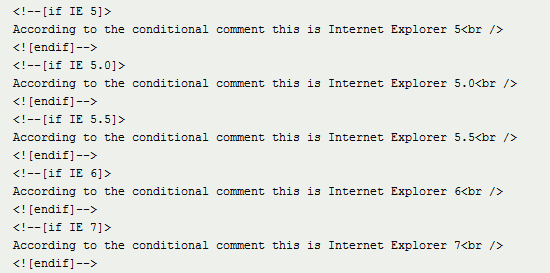 Conditional comments have been a godsend for resolving Internet Explorer inconsistencies.
1 It’s critical when working with CSS to be aware of the various properties at your disposal and how to use them correctly.
2 Using a good editor can increase productivity. Syntax highlighting and auto-complete functionality (plus validation and code references) make life easy. Check out Notepad++, Coda, and don’t discount Dreamweaver CS’s code view until you try it.
3 In many ways, experimentation is the mother of innovation. Give yourself time to play; trial and error will help you learn and memorize techniques quickly. Check out these CSS3 experiments, for inspiration: How to Create Inset Typography with CSS3, Semantic CSS3 Lightboxes, and 10 Interesting CSS3 Experiments and Demos.
4 Enable Gzip compression server-side whenever possible; it shrinks the size of files such as CSS and JavaScript without removing any of the content.
5 Caching will conserve bandwidth for visitors and account for much faster speeds. Take advantage of it whenever you can. Learn about optimizing browser caching.
6 Whitespace is important for CSS readability. Using whitespace to format your stylesheet adds bytes to the file size, but it’s made up for in increased readability.
7 Avoid using inline code (in either elements using the style attribute or in the HTML document within <style> tags), and put them instead in your external stylesheets. It’ll be easier to maintain and also takes advantage of browser caching.
8 Whatever method you use to lay code out, be consistent. You’ll avoid potential problems such as misinterpretation.
9 Conditional comments can help you target versions of Internet Explorer for style. Filtering vendor-specific code isn’t ideal, and comments are safer than ugly hacks.
10 This tip is slightly controversial, but I recommend using a single stylesheet rather than multiple ones. It reduces the number of HTTP requests and improves maintainability, giving your site a performance gain. This is a tip supported by Google Page Speed guidelines.
11 When there are conflicting style rules, style rules that are later down the stylesheet supersedes the ones that come before it. Thus, put mission-critical declarations at the end, where they won’t be in danger of being overridden by other styles.
12 If you encounter a bug and can’t determine its cause, disable CSS (using something like Firebug or the Web Developer add-on) or simply comment out all of the styles, and then bring selectors back one by one until the fault is replicated (and thus identified).
13 Make sure your code works in various browsers. Check it against the latest versions of the top five: Internet Explorer, Firefox, Chrome, Safari and Opera.
14 Additionally, ensure that your code will degrade gracefully when CSS is disabled in the user’s browser. To test this, either turn styles off in every browser or use a text browser such as Lynx.
15 Ensuring that your code degrades gracefully is obviously important, but many people forget that some visitors will have a dodgy browser or have styles turned off, so check that your fallbacks work.
16 Every browser has a built-in debugger. In IE and Firefox you can get to the inspector by hitting F12; for Chrome, Safari and Opera, press Ctrl + Shift + I.
17 Browser emulators can’t replace the real thing, so use a real or virtualized edition of a browser or device.
18 Did you know that PHP code can create dynamic CSS files? Here’s a tutorial on that. Just give the file a .php extension and ensure that the file declares the document header with a text/css content type.
19 Naming CSS files can be tricky. One of the best ways to approach the task is to keep file names short and descriptive, like screen.css, styles.css or print.css.
20 Any code or process you create is valuable, and recycling what you’ve produced for other projects is not a bad thing: pre-existing code is a great timesaver, and this is how JavaScript and CSS frameworks are born.
21 While comments in CSS files can assist other people who read or maintain them, avoid writing comments unless they are required. Comments consume bandwidth. Write CSS in a self-explanatory manner by organizing them intuitively and using good naming conventions.
22 If you’re struggling to remember what’s available in CSS (or even CSS3), get some cheat sheets. They’re simple and can help you get used to the syntax. Here are some excellent CSS cheat sheets: CSS Cheat Sheet (Added Bytes), CSS Shorthand Cheat Sheet (Michael Leigeber), CSS 2.1 and CSS 3 Help Cheat Sheets (PDF) (Smashing Magazine).
23 Bad code breaks more websites than anything else. Validate your code by using the free, web-based W3C CSS Validation Service to reduce potential faults.
24 Vendor-specific CSS won’t validate under the current W3C specifications (CSS2.1), but could give your design some useful enhancements. Plus, if you’d like to use some CSS3 for progressive enhancement, there’s no way around using them in some instances. For example, the -webkit-transform and -moz-transform property was used to progressively enhance these CSS3-animated cards for users using Safari, Chrome, and Mozilla Firefox.
25 Keep multiple CSS files in a single directory, with an intuitive name such as css/. If your website has hundreds of pages, maintainability and information architecture are vital.
Targeting your code for styling is one of the primary functions of CSS. Whether you’re trying to make your code mobile-friendly, printer-friendly or just good old screen-friendly, you’ll be following certain conventions. Ensuring that styles aren’t in conflict, using CSS inheritance correctly and triggering actions in response to events (such as hovering) are all part of the CSS package. This section is dedicated to useful tips related to conventions.
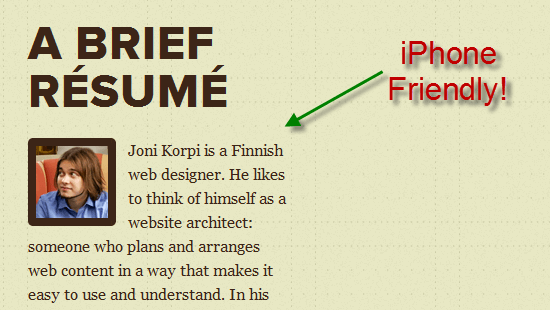 With CSS3 media queries, designing for non-standard experiences has become easier.
26 Be careful when using the media attribute in your HTML declaration for an external CSS file. You might be unable to use media queries to better provide pre-cached alternative visuals.
27 If you find elements that use the same properties and values, group them together by using a comma (,) to separate each selector. This will save you from repetition.
For example, if you have the following:
h1 { color:#000; }
h2 { color:#000; }
Combine them as such:
h1, h2 { color:#000; }
28 Printer-friendly stylesheets are very important if you want to save your visitors’ ink and paper. Use the @media print at-rule, and remove anything that isn’t necessary on the printed page.
29 Accessibility also has to do with how the written word is spoken. The aural (now deprecated in CSS) and speech media queries can improve usability for screen readers.
30 Unfortunately, the handheld media query in CSS isn’t widely supported. If you want your website to work on mobile devices, don’t depend on it to serve the correct visuals to mobile devices.
31 Take the time to eliminate duplicate references and conflicts in your CSS. It will take some time, but you’ll get a more streamlined render and fewer bytes in your files.
32 When working with mouse hover events, deal with the (1) :link pseudo-class, then (2) :visited, then (3) :hover and finally (4) :active — in that order. This is necessary because of the cascade.
33 Making a website work well on Apple iOS devices is straightforward: to scale your design, just use CSS3 media queries with the appropriate min-width and max-width values. Here’s a tutorial for that.
34 Make the most of CSS inheritance by applying required styles to parent elements before applying them to the children. You could hit several birds with one stone.
35 You can apply multiple classes to an element with space separation, which is great if you want to share properties with numerous elements without overwriting other styles.
36 If you don’t want to deal with IE6’s conditional comment quirks–they require a separate CSS file–then you can use the star hack (* html) selector, which is clean and validates.
37 HTML tooltips are fine for plain text, but the :hover pseudo-class for CSS tooltips gives you more options for showing styled content. Check out this tutorial on how to create CSS-only tooltips.
38 Using attribute selectors, you can add icons or unique styles depending on the file type you link to in an anchor. Here’s an example with which you can add style to a PDF link: a[href$='.pdf].
39 You can also use attribute selectors to target a specific pseudo-protocol such as mailto or skype: [href^="skype:"].
40 Rendering CSS takes time, and listing selectors adds bytes. Reduce the workload of a renderer by using only the selectors you require (an id is better than many child references).
41 Not everyone will agree with this, but I recommend writing every "custom" selector down as a class (before making it an id) to help eliminate duplicate entries.
42 When structuring your CSS file by selectors, the convention is to list elements, then classes (for common components) and finally any ids (for specific, unique styles).
43 Naming conventions for selectors are important. Never use names that describe physical attributes (such as redLink), because changing the value later could render the name inappropriate.
44 Case sensitivity relates to naming conventions. Some people use dashes (e.g. content-wrapper) or underscores (i.e. content_wrapper), but I highly recommend using camel case (e.g. contentWrapper) for simplicity.
45 The universal selector (*) is used widely in CSS reset mechanisms to apply specific properties to everything. Avoid it if you can; it increases the rendering load.
46 With CSS3 media queries, you can easily target the orientation of a viewport with portrait or landscape mode. This way, handheld devices make the most of their display area.
47 Apple’s devices are unique in that they support a <meta name="viewport"> tag, which has stylistic value attached to it. You can use this to force the screen to zoom at a fixed rate of 100%.
48 The two CSS3 pseudo-elements, :target and :checked have great potential. They apply their designated style only to certain events and can be useful as hover event alternatives.
49 Embedding content in CSS is a unique way to give anchor links some description in printer-friendly stylesheets. Try them with the ::before or ::after pseudo-elements.
50 IDs can serve a dual purpose in CSS. They can be used to apply styling to a single element and to act as an anchoring fragment identifier to a particular point on the page.
When we’re not selecting elements for styling, we spend a lot of time figuring out how things should appear on the page. CSS resets and frameworks help us with consistency, but we should know how to correctly apply styles such as positioning and spacing. This cluster of useful tips relates to the aspects of CSS that fundamentally affect how the components of a website appear and are positioned.
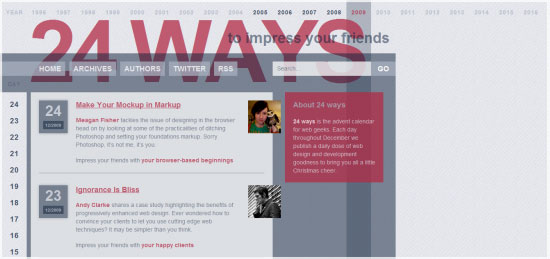 Positioning plays a critical role in the readability of information and should not be ignored.
51 Many designs are focused on grids and the rectangular regions of the viewport. Instead, create the illusion of breaking out of the box for added effect.
52 If margin: auto; on the left and right sides isn’t getting you the central point you desire, try using left: 50%; position: absolute; and a negative margin half the width of the item.
53 Remember that the width of an item constitutes the specified width as well as the border width and any padding and margins. It’s basically a counting game!
54 Another controversial tip here: don’t use CSS resets. They are generally not needed if you take the time to code well.
55 A CSS framework such as Blueprint or YUI Grids CSS might assist you speed up development time. It’s a bit of extra code for the user to download, but it can save you time.
56 Remember that Internet Explorer 6 does not support fixed positioning. If you want a menu (or something else) to be sticky, it’ll require some hacks or hasLayout trickery.
57 Whitespace in web designs is amazing; don’t forget it. Use margins and padding to give your layout and its content some breathing room. You’ll create a better user experience.
58 If one thing overcomplicates the task of scaling a design the way you want, it’s using inconsistent measurements. Standardize the way you style.
59 Different browsers have different implementations; visually impaired users may want to zoom in, for example. Give your layout a quick zoom-test in web browsers to ensure the style doesn’t break!
60 Most browsers can use box-shadow without extra HTML. IE can do the same with filter: progid:DXImageTransform.Microsoft.Shadow(color='#CCCCCC', Direction=135, Strength=5);
61 Rounded corners aren’t as difficult to make as they used to be. CSS3 lets you use the border-radius property to declare the curvature of each corner without surplus mark-up and the use of images.
62 One disadvantage of liquid layouts is that viewing on a large screen makes content spill across the viewport. Retain your desired layout and its limits by using min-width and max-width.
63 WebKit animations and transitions might work only in Safari and Chrome, but they do add a few extra unique, graceful flourishes worthy of inclusion in interactive content.
64 If you want to layer certain elements over one another, use the z-index property; the index you assign will pull an element to the front or push it behind an item with a higher value.
65 Viewport sizes aren’t a matter of resolution. Your visitors may have any number of toolbars, sidebars or window sizes (e.g. they don’t use their browsers maximized) that alter the amount of available space.
66 Removing clutter from an interface using display:none might seem like a good idea, but screen-reader users won’t be able to read the content at all.
67 Be careful with the overflow CSS property when catering to touch-screen mobile devices. The iPhone, for example, requires two fingers (not one) to scroll an overflowed region, which can be tricky.
68 Have you ever come across CSS expressions? They were Microsoft’s proprietary method of inserting DOM scripts into CSS. Don’t bother with them now; they’re totally deprecated.
69 While the CSS cursor property can be useful in certain circumstances, don’t manipulate it in such a way as to make finding the cursor on the screen more difficult.
70 Horizontal scrolling might seem like a unique way to position and style content, but most people aren’t used to it. Decide carefully when such conventions should be used.
71 Until Internet Explorer 9 is final, CSS3 will have some critical compatibility issues. Don’t rely too heavily on it for stable layouts. Use progressive enhancement concepts.
72 CSS makes it possible to provide information on demand. If you can give people information in small chunks, they’ll be more likely to read it.
73 When showcasing a menu in CSS, be consistent in implementation. People want to know about the relationship between objects, and it’s important to avoid dissonance.
74 CSS isn’t a solution to all of your layout woes–it’s a tool to aid your visual journey. Whatever you produce should be usable and logically designed for users (not search engines).
75 Once your layout is marked up with CSS, get feedback on how usable it really is; ask friends, family, co-workers, visitors or strangers for their opinions.
If one thing deserves its own set of tips, it’s the complex matter of adding typography, color and imagery to CSS. We want readable content and we want it in a consistent layout. In this section, we’ll learn to take advantage of typography and color, which are powerful conventions in design. I’ll talk about "web-safe" and share tips relating to the latest craze of embedding fonts.
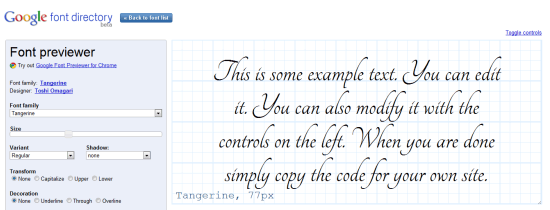 "Web-safe" concepts have changed over time and could soon become a non-issue.
76 Squeezing content too close together can decrease overall readability. Use the line-height property to space lines of text appropriately.
77 Be cautious about letter-spacing: too much space and words will become illegible, too little and the letters will overlap.
78 Unless you have good reason, don’t uppercase (i.e. text-transform:uppercase; ) long passages of text (e.g. HEY GUYS AND GALS WHAT’S UP?). People hate reading what comes off as shouting.
79 Accessible websites have good contrasting colors. Tools exist to measure foreground colors against background colors and give you a contrast ratio. Check out this list of tools for checking your design’s colors. Be sure your text is legible.
80 Remember that default styles might differ greatly from browser to browser. If you want stylistic flourish, reinforce the behavior in the stylesheet.
81 In the old days, the number of colors that a screen could display was rather limited. Some people still use old monitors, but the need for web-safe colors has drastically reduced.
82 Building a font stack is essential when making a design degrade gracefully. Make sure that fallback typefaces exist in case the one you request isn’t available.
83 With Vista, Windows 7 and MS Office 07–10 (and their free viewers), a number of cool new web-safe fonts have become available, such as Candara, Calibri and Constantina. Read about Windows fonts.
84 Plenty of smartphone apps can boost your ability to build a stylesheet, but Typefaces for the iPhone and other iOS4 devices is particularly useful because it shows you every font installed.
85 Web-safe fonts are no guarantee; people could quite possibly uninstall a font even as ubiquitous as Arial (or Comic Sans!). Then their browsers wouldn’t be able to render it.
86 Avoid underlining content with the text-decoration property unless it’s a real link. People associate underlined text with hyperlinks, and an underlined word could give the impression that a link is broken.
87 Avoid the temptation to use symbolic typefaces like Wingdings or Webdings in the layout. It might save KBs on imagery, but it’ll serve nonsensical letters to screen-reader users.
88 Remember that @font-face has different file format requirements depending on which browser the user is on, such as EOT, WOFF, TTF and OTF (as you would find on a PC). Serve the appropriate format to each browser.
89 The outline property is seriously underused as an aid to web accessibility. Rather than leaving it set to the default value, use border styles to enhance an active event’s visibility.
90 Smartphones do not have the same level of core support for web typography that desktop browsers do, which means fewer web-safe fonts and no conventional @font-face embedding.
91 Cross-browser opacity that degrades gracefully can be applied using the -ms-, -moz-, -khtml- vendor prefixes and the filter: alpha(opacity=75); property for Internet Explorer.
92 You can make background-image bullets by using list-style-type:none;, adding a padding-left indent and positioning the background-image to the left (with the required pixel offset).
93 Helping users identify an input box is easy; just add a background image of the name (like "Search" or "Password") and set it so that the image disappears when the box is clicked on by using the :focus pseudo-class and then setting the background property to none.
94 Large and visible click regions enhance the usefulness and usability of anchor links, which in turn guide people among pages. Be attentive when you style these.
95 Remember that background images do not replace textual content. If a negative indent is applied, for example, and images are disabled, then the title will be invisible.
96 Navigation items need to be labeled appropriately. If you use a call-to-action button or an image-based toolbar, make sure a textual description is available for screen readers.
97 If the idea of applying opacity with a bunch of proprietary elements doesn’t appeal to you, try RGBA transparency (in CSS3) instead of background-color: rgba(0,0,0,0.5);.
98 If your visitors use IE6, avoid using px as the unit of measurement for text. IE6 users have no zoom functionality; they rely on text resizing, which doesn’t work with px. Use a relative unit instead, such as em.
99 Providing alternative stylesheets for supported browsers such as Firefox and Opera can enhance readability, as in the case of high-contrast alternatives.
100 If you find choosing colors difficult, web-based tools like Adobe Kuler, desktop tools like ColorSchemer Studio and mobile apps like Palettes Pro might help.
CSS has come a long way in recent years. With browser makers implementing the CSS3 specification even before it’s finalized, adding unique proprietary styles (such as WebKit transformations) to the mix and increasingly supporting web standards, there has never been a better time to be a web designer. In the past, we could only hope that our styles would be correctly applied, but it seems that desktop and mobile platforms are improving like never before.
 Web designs have come a long way since the ’90s, and that’s a good thing.
Implementing CSS can be frustrating, what with ongoing web-browser issues, but it’s still one of the most fun web languages you can engage with. Rather than laying out the structure of objects or fiddling with complex mechanisms, you can dictate how content should appear. It’s like being given a blank piece of paper and a pack of crayons. And designers are experimenting with the available styles to create beautiful experiences for audiences.
Consider the implications of every property and style you declare. CSS can turn the simplest or most minimalist layout into a complex structure of interactivity that would terrify all but the most dedicated individuals. As the capabilities and options in CSS grow and devices are updated to support them, a new wave of unique layouts will appear. Hopefully a number of them will be yours.
 Alexander Dawson is a freelance web designer, author and recreational software developer specializing in web standards, accessibility and UX design. As well as running a business called HiTechy and writing, he spends time on Twitter, SitePoint’s forums and other places, helping those in need.
